
How to Convert PDF to PowerPoint Free (Editable Slides)
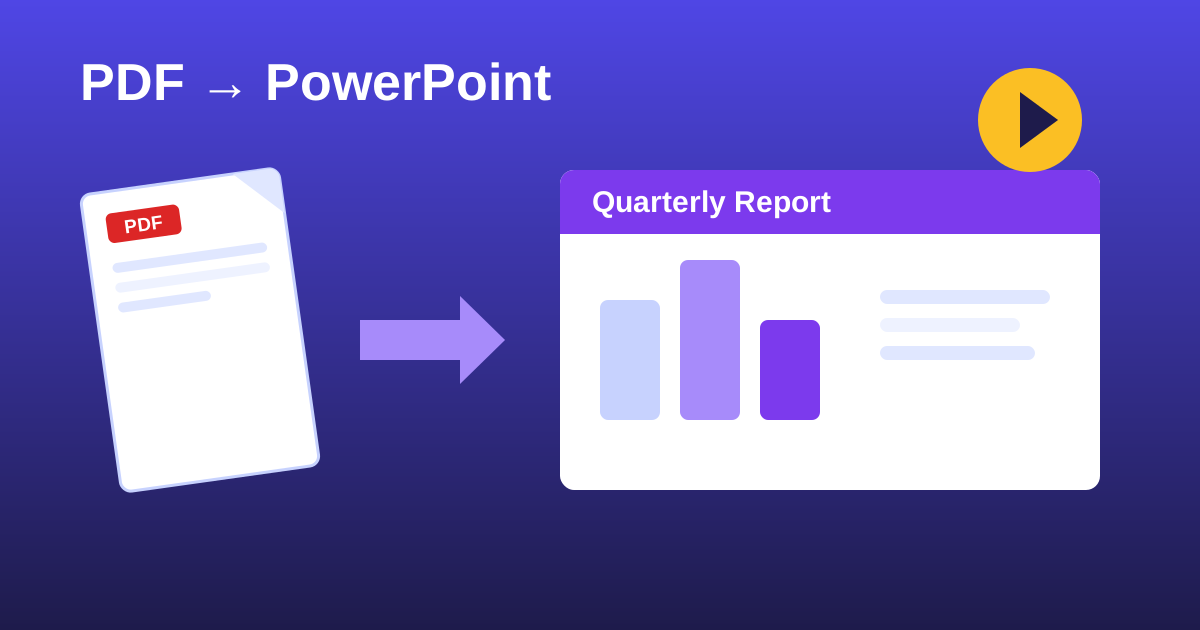
Reports, whitepapers, and brochures usually arrive as PDFs, but meetings run on slides. PDF to PowerPoint from ZeroFee Tools converts each page of your PDF into a slide in an editable .pptx file, so you can lift charts into a deck, rearrange content, and present without rebuilding everything from scratch. Students turning research into class presentations and consultants repurposing client reports both save hours here.
How do I convert a PDF to PowerPoint for free?
Upload your PDF to the converter and enable the editable text boxes option if you want to change wording later. Each page converts into a slide in a standard .pptx file, ready to open in PowerPoint or Google Slides. Rearrange, restyle, and present: no rebuilding from scratch and no account needed.
Decorative or stylized text may convert as images rather than editable boxes.
Will my converted slides keep animations?
No. PDFs contain no animation data, so every page becomes a static slide. Add your own transitions and animations in PowerPoint or Google Slides after conversion. The layout, images, and text positions carry over; motion is yours to design fresh.
The .pptx also opens cleanly in Keynote and LibreOffice Impress.
Unlike screenshot-pasting, the conversion can also produce genuinely editable text. Tick one option and text detected on the page becomes real text boxes you can restyle, rather than flat pictures of words.
How to convert a PDF to PowerPoint
- Upload your PDF by dropping it on the page or clicking to browse.
- Choose image quality: Standard is fastest, High is recommended for crisp slides, and Very high gives maximum sharpness at the cost of conversion time and file size.
- Tick "Add editable text boxes" if you want to edit the wording on slides afterwards. Leave it off for the fastest conversion when you only need the visuals.
- Click Convert to PowerPoint and wait while each page is rendered into a slide.
- Download the .pptx and open it in PowerPoint, Google Slides, or Keynote. Converting another file? Choose another PDF resets the tool.
5 practical tips
- Start with High quality. It is the recommended setting for a reason: slides stay sharp on projectors without the bloat of Very high. Drop to Standard only for huge documents.
- Enable editable text for reports. If your goal is quoting or restyling content, editable text boxes save you from retyping entire paragraphs.
- Expect images for complex layouts. Intricate charts and multi-column designs convert as pictures of the page - plan to rebuild only the slides you truly need to edit.
- Check fonts after opening. Editable text uses standard fonts; a quick pass applying your deck's theme fonts makes the imported slides look native.
- Split long PDFs first. A 100-page manual becomes a 100-slide deck - extract just the pages you will present with the PDF Suite beforehand.
FAQs
Will animations and transitions carry over?
No - PDFs have no animation data, so each page becomes a static slide. Add your own transitions in PowerPoint after conversion.
Is the text really editable?
When "Add editable text boxes" is enabled, detected text becomes real, selectable text boxes. Decorative or highly stylized text may still convert as an image.
Does it work with Google Slides?
Yes. The downloaded .pptx opens in PowerPoint, Google Slides, Keynote, and LibreOffice Impress.