
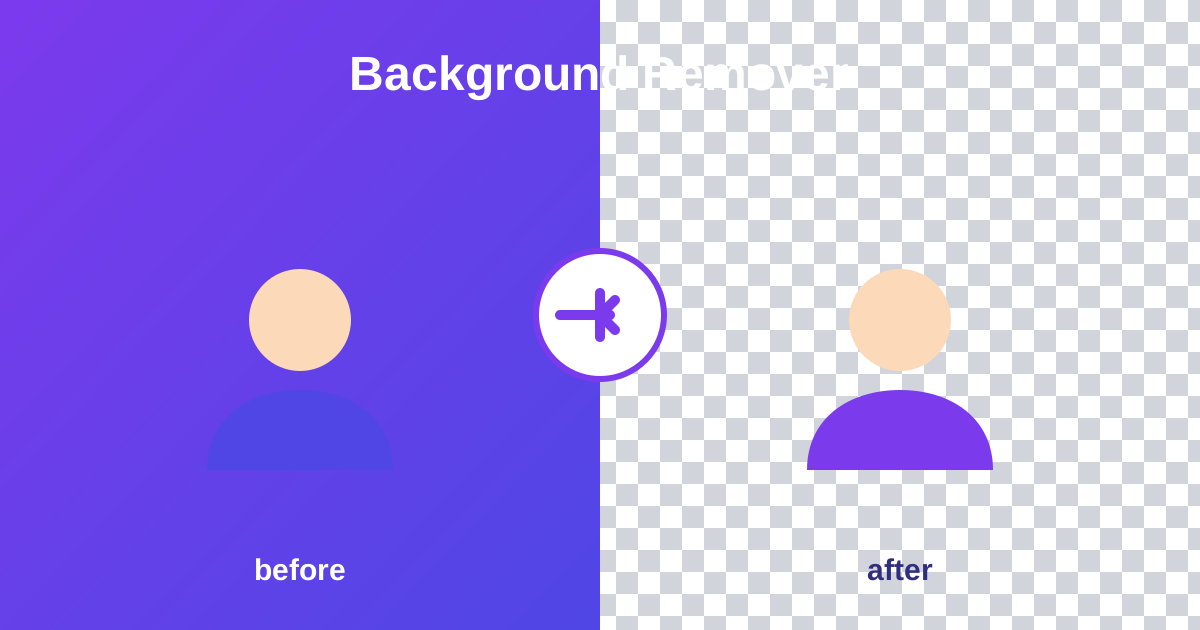
How to Remove a Photo Background Free (AI, No Signup)
A clean background-free cutout used to mean Photoshop skills or paying per image. The Background Remover from ZeroFee Tools uses an AI model that runs entirely in your browser to separate your subject from its background in seconds, delivering a transparent PNG with no signup, no watermark, and no upload queue. Online sellers love it for product photos, and it works just as well for profile pictures and design mockups.
How can I remove an image background for free?
Upload your photo to the Background Remover and the in-browser AI detects the subject and erases the background automatically, usually within seconds. Download the result as a transparent PNG with no watermark and no account needed. You can repeat this for as many photos as you like, entirely free.
Photos with clear contrast between subject and background produce the cleanest edges.
Do my photos get uploaded when removing backgrounds?
No. The AI model downloads to your browser once, and every removal happens on your own device, so private or client photos never travel over the internet. This makes the tool safe for sensitive product shots, ID-style portraits, and unreleased designs that you would never paste into a random upload site.
Only the first use downloads the model; afterwards the tool works even offline.
It is a workhorse for online sellers (product photos on clean backgrounds convert better), job seekers polishing LinkedIn headshots, designers building composites, and anyone making thumbnails or social graphics.
How to remove a background step by step
- Add your image by dropping it onto the page or clicking to browse (any common image format works).
- Wait for the first-run setup. The AI model downloads once - about 40 MB - so the first removal needs an internet connection and can take a minute. After that, it is cached and removals start instantly.
- Let the AI work. Processing happens 100% in your browser; you will see a preview of your subject isolated on transparency.
- Check the edges. If hair, fur, or fine details look rough, hit Try again - a second pass sometimes cleans up tricky edges.
- Download your PNG with its transparent background. Use Use a different image or Remove another background to process the next photo.
5 practical tips
- Start with contrast. A dark subject on a light background (or vice versa) gives the AI the clearest edge to find - busy, same-toned backgrounds are the hardest cases.
- Light hair and fur well. Fine strands against a similarly colored background are where every remover struggles; even, bright lighting is the single biggest quality lever you control.
- Use high-resolution originals. Edge detail survives better when the AI has more pixels to work with - do not pre-shrink the photo before removing.
- Be patient on first use. That ~40 MB model download only happens once; if it ever fails to load, the tool tells you plainly instead of silently producing a bad cutout.
- Place on the final background before judging. A cutout that looks slightly rough on a checkerboard can look perfect once composited onto its real background.
FAQs
Is background removal really free and unlimited?
Yes - remove as many backgrounds as you like, with no account and no watermark on the downloaded PNG.
Do my photos get uploaded to a server?
No. The AI model downloads to your browser and all processing happens on your device, so private photos never leave your computer.
Why is the first removal slow?
The first run downloads the ~40 MB AI model plus supporting files. Subsequent removals reuse the cached model and start much faster.