
How to Compress an Image to an Exact Size (KB) Free
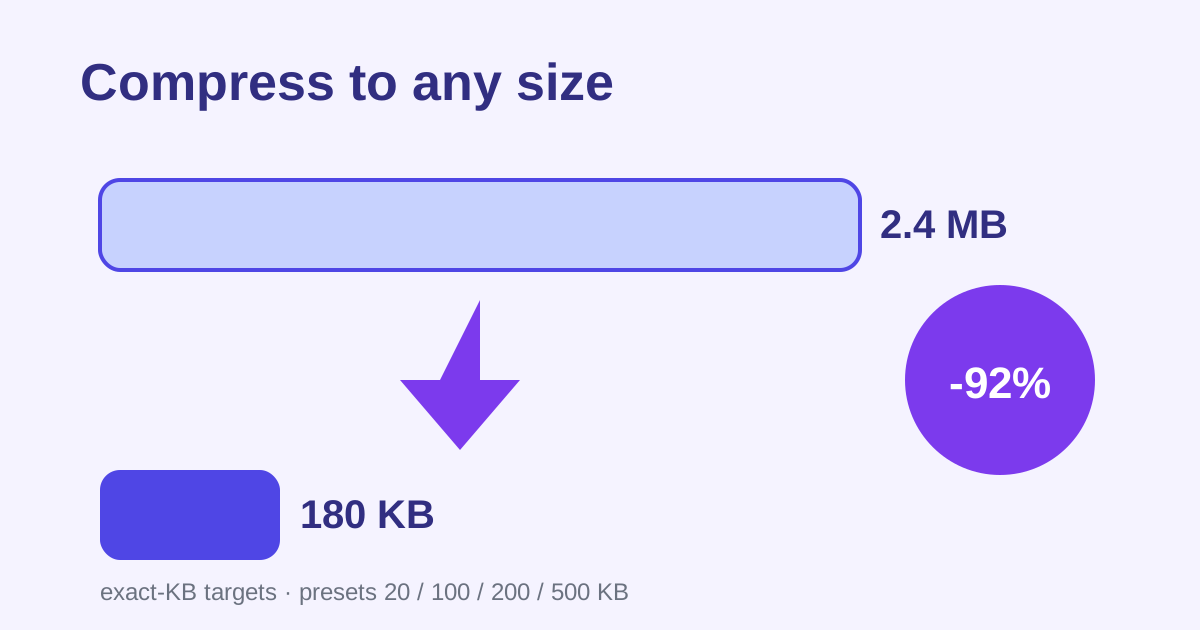
So many uploads demand an exact file size: maximum 100 KB for a job portal, under 2 MB for a visa form. Instead of guessing quality sliders, the free Compress Image tool from ZeroFee Tools hits your target automatically: type the exact kilobytes you need or grab a quick preset (20, 100, 200, or 500 KB), and it iteratively adjusts quality until the file lands on your number.
How do I compress an image to an exact KB size?
Upload your image to the Compress Image tool and type your target, for example 100, into the Target size field. The tool iteratively adjusts JPEG or WebP quality until the file lands on (or just under) your number, then you download the result. Batch mode applies one target to many images at once.
WebP gives visibly sharper results than JPEG at aggressive targets like 20 KB.
Will compressing an image ruin its quality?
Every size reduction involves trade-offs, but this tool finds the best quality possible at your exact size instead of guessing. Sensible targets like 100 to 500 KB look great for web uploads; extreme targets like 20 KB will show softness. Zoom the result before submitting to exam portals or official forms.
Shrinking pixel dimensions first gives more headroom than quality reduction alone.
Type any target into the Target size (KB) field or grab a Quick preset (20, 100, 200, or 500 KB), and the tool iteratively adjusts quality until the file lands on your number. It is perfect for job portals, exam forms, visa applications, and forums with strict attachment caps.
How to compress to an exact size
- Upload your image by dropping it on the page or clicking to browse.
- Set your target: type the exact kilobytes you need into Target size (KB), or click a Quick preset - 20 KB, 100 KB, 200 KB, or 500 KB.
- Pick a format: JPEG - accepted everywhere for maximum compatibility, or WebP - smaller, sharper when the destination supports it and you want the best quality at your target size.
- Click Compress all to process your batch - every image is squeezed to your exact target.
- Download all to save the results. Clear resets for the next set.
5 practical tips
- Choose WebP when you can. At the same KB target, WebP looks noticeably sharper than JPEG - the difference is obvious on aggressive targets like 20 KB.
- Start from the original file. Compressing an already-compressed image compounds artifacts. Always feed the tool the highest-quality version you have.
- Match the preset to the job: 20 KB for tiny form avatars, 100 KB for web uploads and portals, 200–500 KB for email attachments where quality still matters.
- Check readability after compressing. At very small targets, fine text in screenshots can become illegible - zoom the result before submitting it to that exam portal.
- Resize dimensions for extreme targets. If a photo will not hit 20 KB cleanly, shrinking its pixel dimensions first gives the compressor far more headroom than quality reduction alone.
FAQs
Does it hit the exact KB I type?
It targets your number precisely through iterative quality adjustment - the result lands on (or just under) your target size, not merely "somewhere close".
Will compression ruin my image quality?
Any size reduction involves trade-offs, but the tool finds the best quality possible at your size. Sensible targets (100–500 KB) look great; extreme ones (20 KB) will show softness.
Can I compress multiple images at once?
Yes - upload a batch, set one target, and Compress all processes every image to the same size in one pass.