
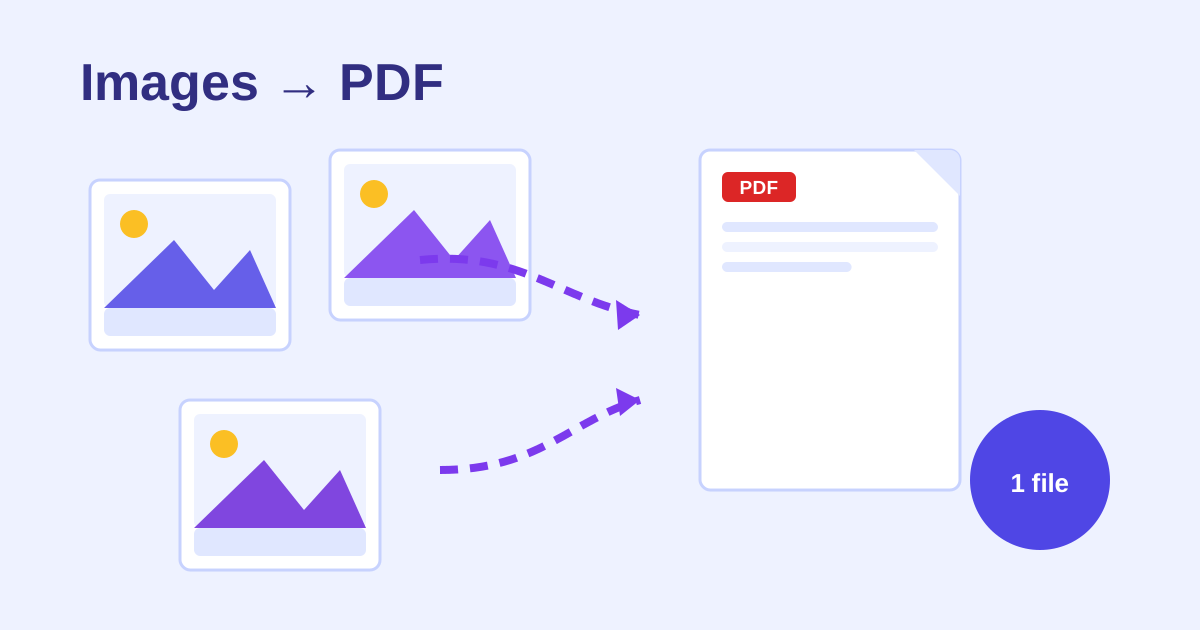
How to Combine Images Into One PDF Free
Phone galleries are full of things that should be PDFs: expense receipts, whiteboard photos, signed pages, portfolio shots. Images to PDF from ZeroFee Tools bundles any set of images into a single tidy PDF document, free, unlimited, and processed entirely on your device so private photos never travel over the internet. It is the fastest way to turn a camera roll into something you can email to accounting or attach to a form.
How do I turn multiple images into one PDF?
Upload your images to the Images to PDF tool, drag the thumbnails into the order you want, set page size, orientation, and margins, then click Create PDF. Your photos are embedded at full original resolution and bundled into a single downloadable document in seconds, with no signup and no watermark.
Reorder thumbnails before creating; rebuilding takes seconds if you spot a mistake.
Does converting images to PDF reduce quality?
No. Your images are embedded at their original resolution, so nothing about the picture data changes. The page-size, orientation, and margin settings only control layout, not sharpness. What you upload is exactly what lands in the PDF, pixel for pixel.
For email-sized files, compress the images first, then build the PDF.
It is the fastest way to turn a camera roll into something you can email to accounting, attach to a job application, or archive properly. You control page size, orientation, and margins, so the result looks deliberate rather than slapped together.
How to make a PDF from images
- Add your images by dropping them onto the page or clicking to browse. They appear as thumbnails you can review.
- Check the order - pages follow the order your images are listed, so arrange receipts chronologically or portfolio pieces deliberately before continuing.
- Pick a page size: Fit image makes each page exactly the image's dimensions (great for photos), while A4 and Letter give you standard document pages (better for anything that will be printed).
- Set orientation: Auto matches each image, or force Portrait / Landscape for a uniform document.
- Choose margins: None for full-bleed photos, Small (10mm) or Large (20mm) for a cleaner, more document-like look.
- Click Create PDF and download your file. Clear all resets the workspace for the next batch.
5 practical tips
- Use A4 for anything official. Expense reports, applications, and legal attachments look far more professional on standard pages than on oddly-sized photo pages.
- Fit image for portfolios and comics. When the image is the content, full-bleed pages preserve every pixel and avoid awkward white borders.
- Keep orientation on Auto for mixed batches. Forcing portrait on a set of landscape whiteboard photos just shrinks them; Auto gives each image its best fit.
- Shoot straight the first time. The tool does not straighten skewed photos - take a second to align your camera and you will skip a lot of ugly keystoning.
- Compress images first if emailing. Ten full-resolution phone photos make a heavy PDF; run them through an image compressor before combining if the file must stay under an attachment limit.
FAQs
How many images can I combine?
There is no set limit - combine a handful of receipts or a hundred portfolio shots. Very large batches simply take a little longer to assemble.
Does converting to PDF reduce image quality?
No. Your images are embedded at their original resolution; the page-size settings only change how they are laid out, not how sharp they are.
Can I reorder pages after creating the PDF?
Reorder the image thumbnails before clicking Create PDF. If you spot a mistake afterwards, the quickest fix is to rebuild - it takes seconds.