
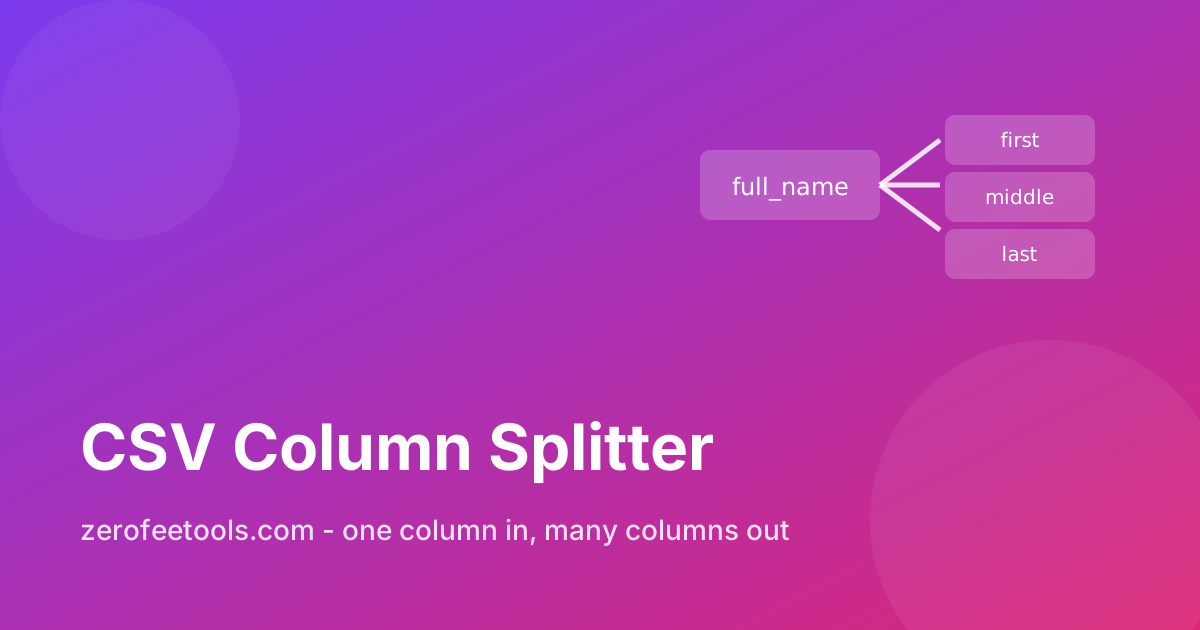
A CSV column splitter is a free online tool that divides one column into several on a delimiter you choose. Split full names into first and last, addresses into street and city, or SKUs into parts: pick the column, set the delimiter, preview the new headers, and download the widened CSV.
How do I split a CSV column into multiple columns?
Short answer: Paste your CSV, press Load columns, choose the column to split and the delimiter it contains (for example a comma inside full names like Doe, John), then press Preview split. The preview shows the new headers and the first rows so you can check the result. Press Apply split and download the widened CSV.
The number of new columns is set by the row with the most parts; shorter rows are padded with empty cells so every row stays aligned.
What happens when rows split into different numbers of parts?
Short answer: Uneven splits are handled safely. If one row has two parts and another has four, the tool creates four new columns and pads the shorter rows with empty cells. You can also cap the count with Max new columns: extra parts are merged into the last column instead of being dropped.
This keeps addresses, names, and compound SKUs intact even when the data is inconsistent.
Can I split a full name into first and last name?
Short answer: Yes: choose the name column and split on space or comma depending on the format. For Last, First style data, split on comma to get the two parts directly. For First Last, split on space and keep in mind that middle names create a third part, which you can merge back or cap with the max-columns option.
After splitting, run the result through the CSV Column Combiner if you need to reassemble parts in a different order.
Frequently asked questions
Is this CSV column splitter free?
Yes. Split unlimited columns with no account and no limits. It runs entirely in your browser.
Will the original column be deleted?
By default the original column is replaced by the new ones. Tick Keep original column if you want it preserved alongside the split.
How are the new columns named?
Each new header takes the original name plus _1, _2, and so on, for example Name_1 and Name_2. Rename them in your spreadsheet afterwards if you prefer different labels.
What if a cell has no delimiter in it?
It becomes the first new column and the remaining new columns stay empty for that row, so nothing shifts out of alignment.
Is my data uploaded anywhere?
No. Splitting happens locally in your browser, including uploaded files.